Create a slide about building accessible web applications from the ground up. The slide should emphasize practical techniques and best practices for incorporating accessibility into the development process. It should cover topics like semantic HTML, proper labeling, focus management, keyboard navigation, and ARIA attributes. The target audience is web developers, and the tone should be informative and encouraging. Include a code example demonstrating best practices for associating labels with inputs and managing focus traps.
Start by framing the mindset: accessibility is a design constraint and a quality bar, not a bolt-on.
Explain semantic first: using native elements gives you roles, names, and keyboard behavior for free.
Move to labels: every input needs a programmatic name; labels improve hit targets and screen reader output.
Cover focus management: set initial focus when opening components, trap focus inside modals, and restore focus to the trigger on close.
Emphasize full keyboard navigation: Tab and Shift+Tab to move, Enter/Space to activate, and Arrow keys within composite widgets like menus.
Stress “ARIA only when needed”: prefer native elements; when you must build custom, provide correct role and aria state that mirrors UI state.
Mention useId: stable IDs prevent SSR/CSR mismatches for htmlFor and aria attributes in React.
Close with color contrast: meet at least AA 4.5:1 and do not rely solely on color to convey meaning.
Point to the code strip: show useId for label/input association and a focus trap activation when a dialog opens.
Invite the audience to think about adding these checks to PR templates or component definitions so they become habits.
Behind the Scenes
How AI generated this slide
Analyze the user's request for keywords like accessibility, web development, semantic HTML, labeling, focus management, keyboard navigation, and ARIA attributes.
Structure the slide content with a title, subtitle, and a list of key accessibility checklist items.
Incorporate a code example illustrating the use of useId for label association and focus trap activation.
Add visual elements like checkmarks and subtle animations to enhance engagement.
Generate speaker notes to provide context and further explain the concepts presented on the slide.
Why this slide works
This slide effectively communicates accessibility best practices for web developers. It utilizes clear, concise language and visual cues to highlight key concepts like semantic HTML, labeling, focus management, and keyboard navigation. The inclusion of a practical code example demonstrates how to implement these techniques, making the information actionable for developers. The speaker notes provide additional context and talking points, enhancing the slide's educational value. By focusing on practical tips and actionable advice, the slide empowers developers to prioritize accessibility from the beginning of the development process, leading to more inclusive and user-friendly web experiences. Keywords like web accessibility, ARIA, semantic HTML, and keyboard navigation enhance the slide's discoverability and relevance for online searches.
Slide Code
You need to be logged in to view the slide code.
Questions
Frequently asked
Why is web accessibility important?+
Web accessibility ensures that people with disabilities, including visual, auditory, motor, and cognitive impairments, can perceive, understand, navigate, interact with, and contribute to the web. It promotes inclusivity and equal access to information and services online. Furthermore, accessible websites often benefit all users, improving usability and overall user experience.
What is semantic HTML and why is it important for accessibility?+
Semantic HTML involves using HTML elements for their intended purpose based on their meaning, not just their appearance. For example, using <header>, <nav>, <main>, <article>, <aside>, and <footer> elements provides structural meaning to a webpage. This is crucial for accessibility as assistive technologies like screen readers rely on semantic HTML to understand the structure and content of a webpage, conveying information effectively to users with disabilities.
How can I improve keyboard navigation on my website?+
Ensure all interactive elements are accessible using the Tab key and follow a logical order. Use appropriate ARIA attributes (aria-labelledby, aria-describedby, etc.) where necessary to provide additional context for screen reader users. Implement proper focus management, especially for modals and other interactive components, to prevent keyboard traps and ensure a smooth navigation experience.
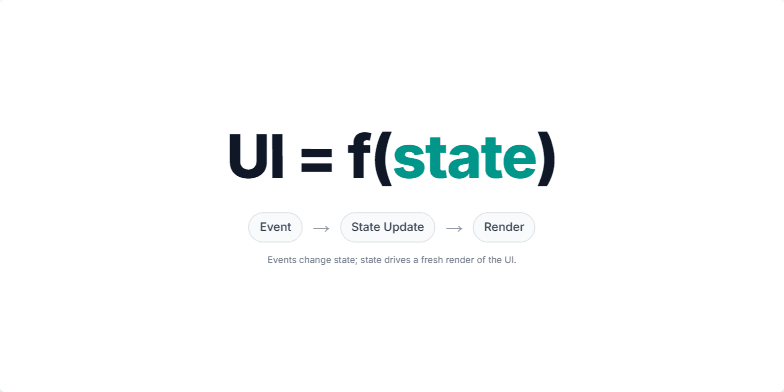
Create a slide explaining the core concept of React, that UI is a function of state. The slide should visually represent the formula UI = f(state) and illustrate how events trigger state updates, leading to UI re-renders. It should emphasize declarative programming over direct DOM manipulation. The animation should first show the formula, then the word 'state' should be highlighted, followed by a flow diagram illustrating Event → State Update → Render. The speaker notes should guide the presenter through these steps, explaining the concept clearly.
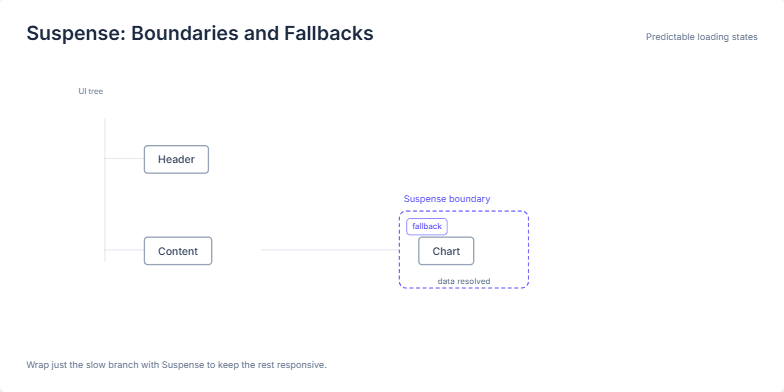
This slide visually explains the concept of Suspense boundaries and fallbacks in React, specifically for handling asynchronous operations and loading states. It demonstrates how Suspense allows developers to isolate slow-loading components (like a chart fetching data) and provide a fallback UI (like a loading indicator) while the data loads. This keeps the rest of the application responsive and provides a better user experience. The slide uses a simplified UI tree to illustrate the relationship between the parent component, the Suspense boundary, the loading component, and the fallback UI. The animation shows the transition from the fallback to the loaded component, emphasizing the predictable and localized nature of the loading state. The speaker notes provide a step-by-step explanation of the slide's elements and key takeaways about using Suspense for efficient loading management in React applications.
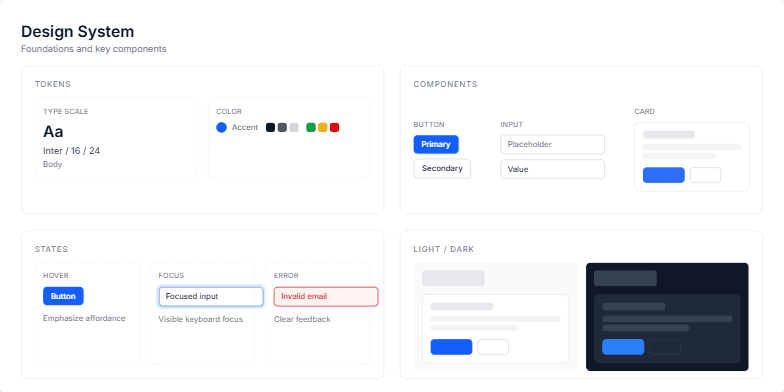
Create a slide showcasing a design system, including tokens (typography, color), components (button, input, card), states (hover, focus, error), and light/dark mode previews. The slide should have a title 'Design System' with a subtitle 'Foundations and key components'. The design system uses Inter font with size 16 and line height 24 for the body text. The primary color is blue. Include speaker notes explaining the design system's purpose to reduce decision fatigue and speed up delivery while maintaining quality. Also, explain how tokens, components, states, and themes work together. The layout should be clean and informative, suitable for a presentation.
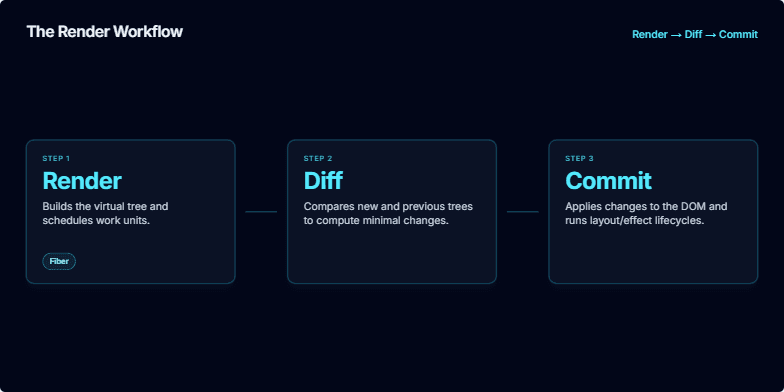
Create a slide explaining the render workflow in React, including the render, diff, and commit phases. It should be visually appealing and easy to understand. The slide should also include speaker notes explaining the process in more detail, highlighting the Fiber architecture for cooperative scheduling and how it impacts rendering performance. It should also mention the importance of this mental model for debugging. The target audience are developers who have some understanding of React.
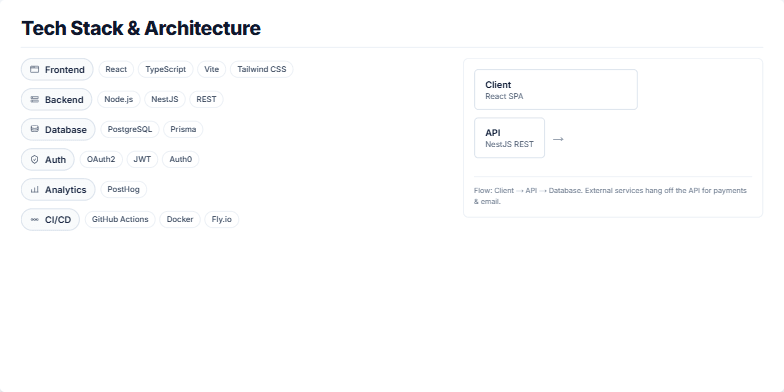
Create a slide visualizing the tech stack and architecture for a web application. The frontend uses React, TypeScript, Vite, and Tailwind CSS. The backend is built with Node.js and NestJS, using a REST API. PostgreSQL is the database, accessed via Prisma. Authentication is handled with OAuth2, JWT, and Auth0. PostHog is used for analytics. The CI/CD pipeline involves GitHub Actions, Docker, and Fly.io. The architecture diagram should show the client (React SPA), API (NestJS REST), and database (PostgreSQL). It should also highlight integrations with Stripe and SendGrid, emphasizing that these external services interact with the API, not directly with the client or database. The flow should be clearly illustrated: Client → API → Database, with integrations decoupled and accessible through the API.
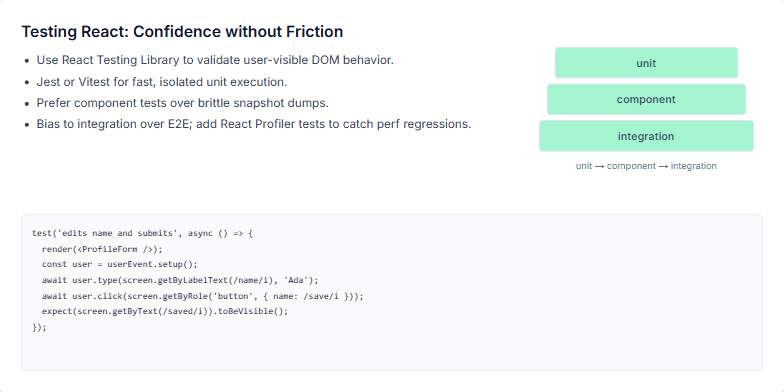
This slide is part of a presentation on testing React applications effectively. It emphasizes the importance of finding a balance between confidence and development speed. The slide content focuses on using practical tools and techniques like React Testing Library, Jest/Vitest, and component/integration tests over brittle snapshot tests. It also highlights the need for performance regression testing using React Profiler. The visual aid uses a pyramid to represent the testing layers: unit, component, and integration, emphasizing a focus on component and integration tests for optimal results. Finally, a code example demonstrates a typical test using React Testing Library, emphasizing its simplicity and focus on user interaction and visible outcomes.
Want to generate your own slides with AI?
Start creating high-tech, AI-powered presentations with Slidebook.